Aster Vale Observatory
A careful question can stay open until someone returns to it.
Highlight a sentence on this page, then find it in your Library.
In Safari, open Safari Settings, choose Extensions, and switch on et al. Then open this page and click the et al. button in the toolbar.
When Safari asks, choose Always Allow on This Website or Always Allow on Every Website. Allow for One Day is a temporary choice.
In Safari, open Page Menu next to the address, then choose et al.
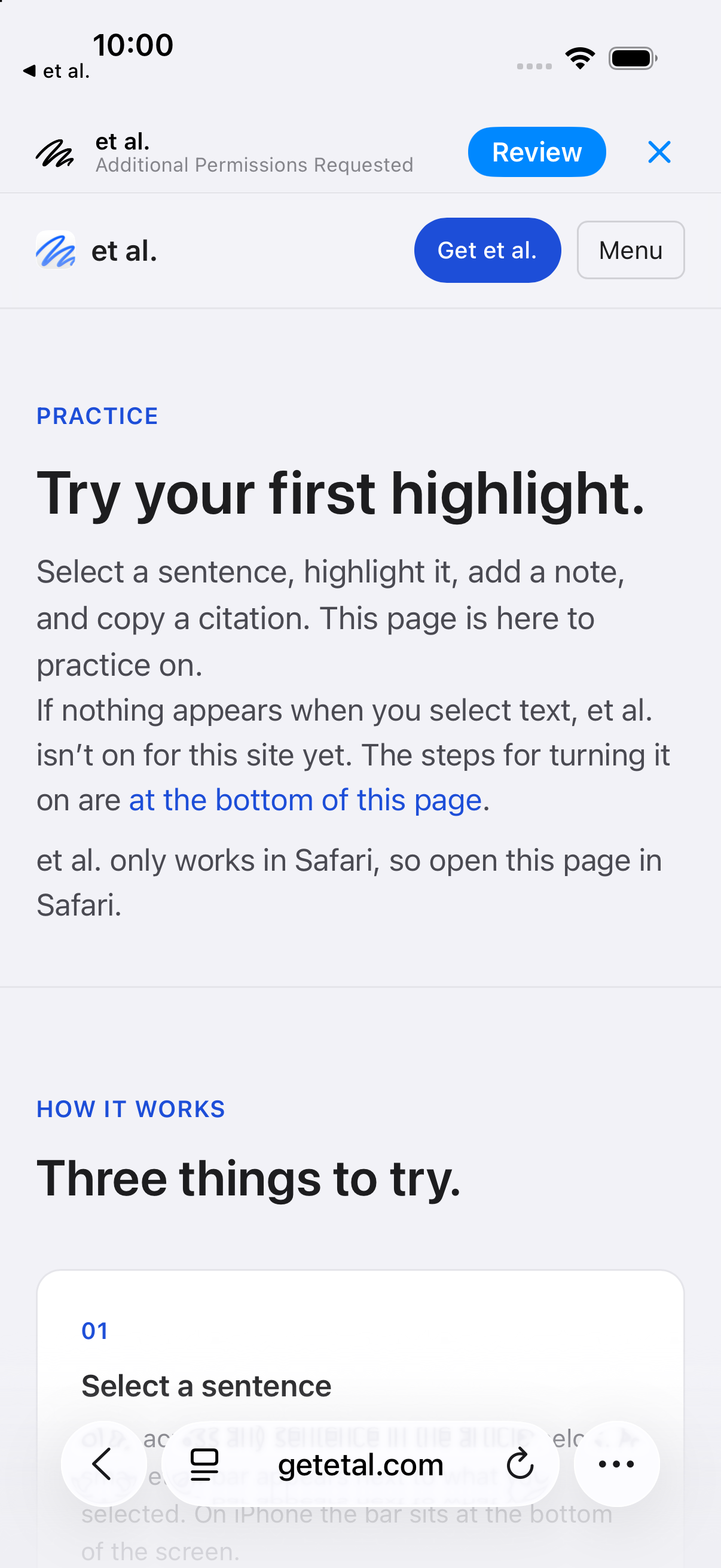
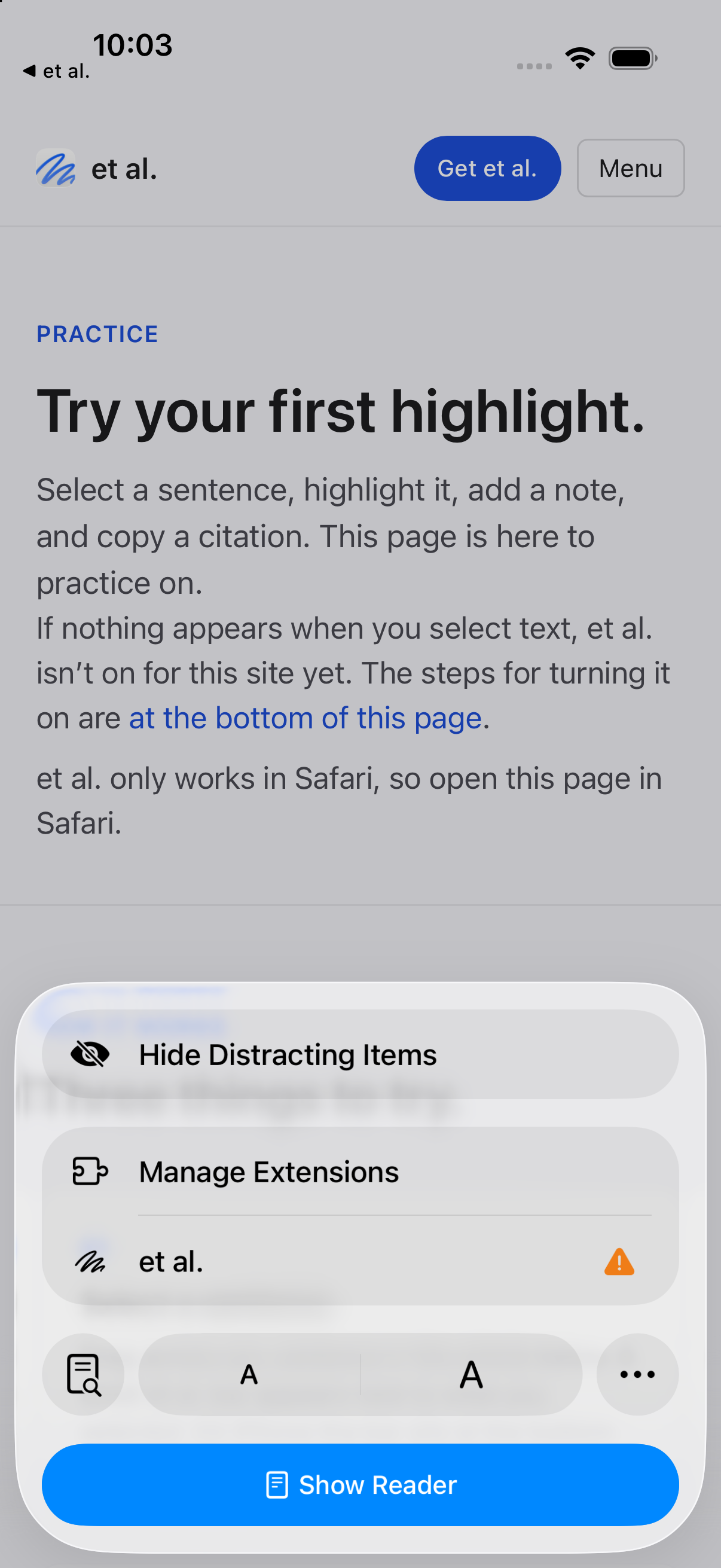
The toolbar can look different with another Safari layout or version.
If Safari asks, allow access to this website to practice. Allow for One Day is temporary. For ongoing access, choose Always Allow…, then Always Allow on This Website. Access to every website is optional.
In Page Menu, choose Manage Extensions and turn on et al. Then open Page Menu again and choose et al.
In Safari, choose the et al. button in the toolbar beside the address.
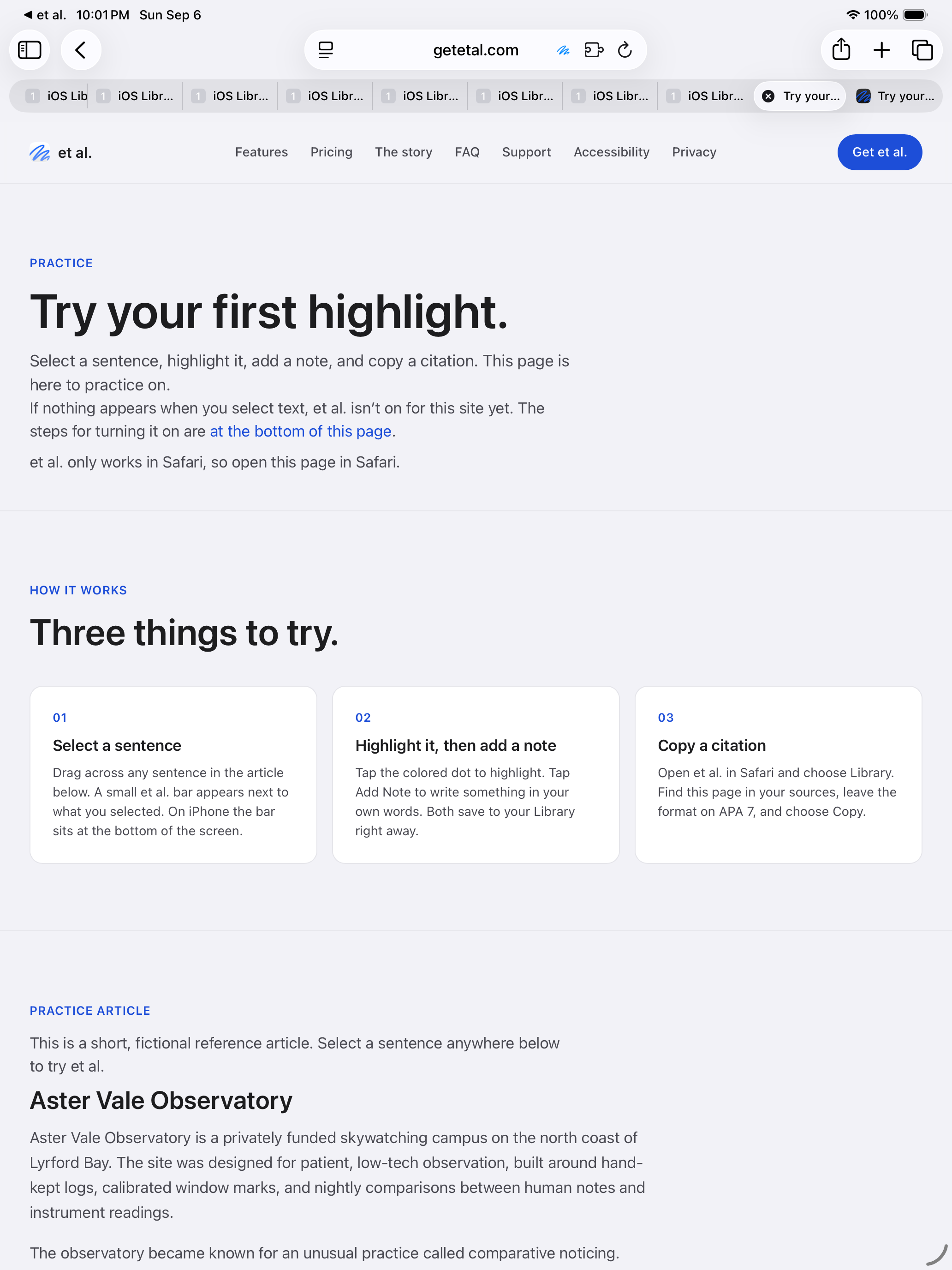
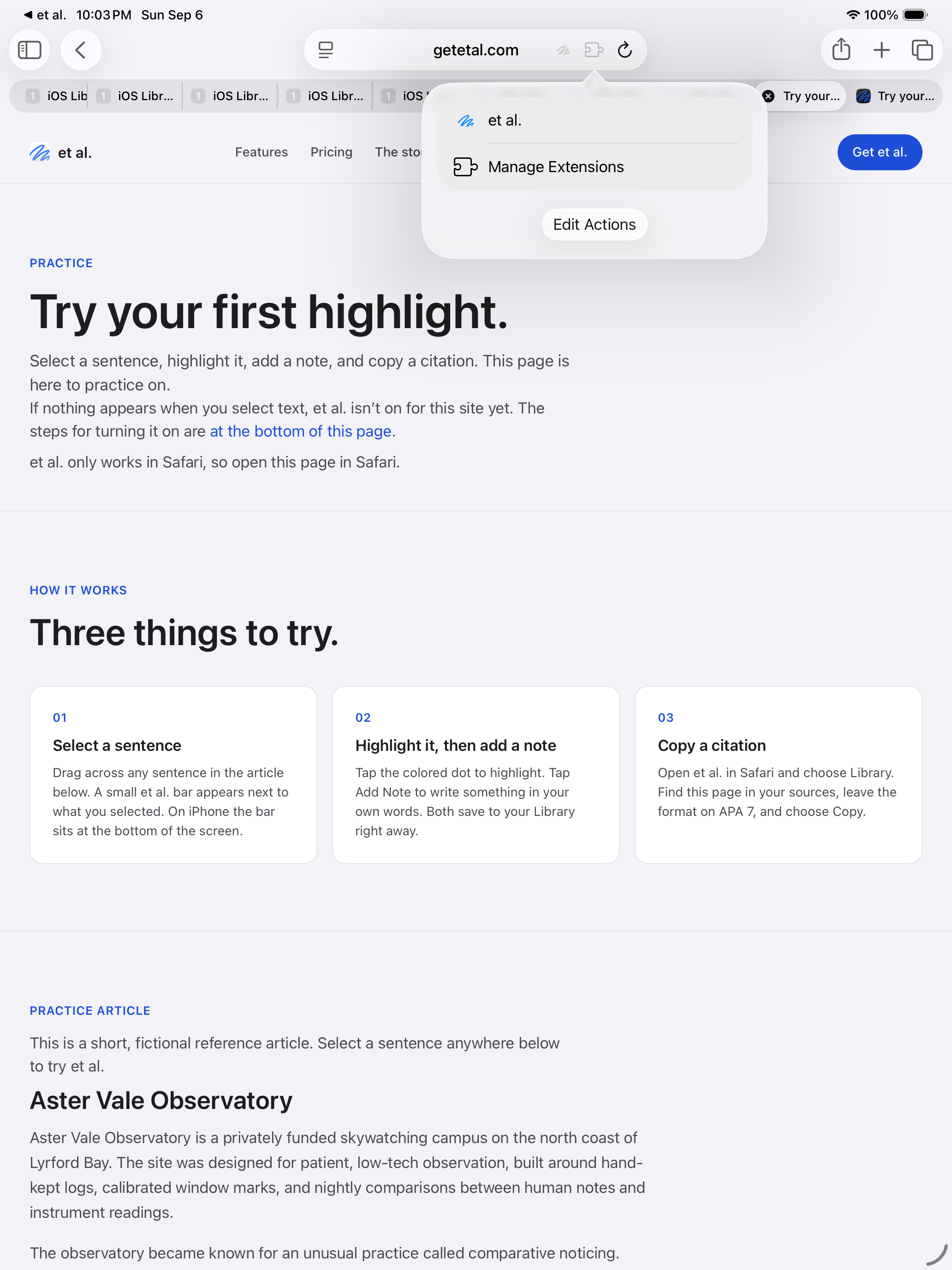
The toolbar can look different with another Safari layout or version.
If Safari asks, allow access to this website to practice. Allow for One Day is temporary. For ongoing access, choose Always Allow…, then Always Allow on This Website. Access to every website is optional.
Open Safari’s puzzle-piece menu, choose Manage Extensions, and turn on et al. Then open the puzzle-piece menu again and choose et al.
Open this page in Safari to try highlighting.
Paste the link into Safari’s address bar.
et al. is running on this page.
Select the sentence below, then choose a color in the et al. bar.
A careful question can stay open until someone returns to it.
Open et al. from Safari’s toolbar or page menu, then choose Library. Look for Try your first highlight in your sources.
Practice highlight is in your Library.
Your highlights and notes live here.


In your Library, choose Export to export highlights or create citations.
The first time you use et al. on a site, Safari asks for permission. To bring up the prompt, open the et al. menu in Safari. On iPhone, open Page Menu, then et al. On iPad and Mac, choose the et al. button in the toolbar.
Choose access for this website to practice, or for every website if you want et al. available more widely. Always Allow keeps access until you change it. Allow for One Day is temporary. You can change website access later in Safari extension settings.
If et al. stops working on a site, check whether its access expired or was allowed only on another website. Open et al. from Safari’s toolbar or page menu, review its website access, and reload the webpage. Private Browsing may need separate permission.
This page itself does not send the practice text to et al Labs. If you turn on optional iCloud Sync in the app, your highlights follow the sync settings you choose there.